
01. But Why?
You may have seen me post about how my old hosting provider - InfinityFree, which provides free hosting - was blocking mastodon verification requests. That is, by and large, not a huge deal, but it sure is annoying if you’re as into the fediverse as I am, and also trying to advance its usage and prominence in our digital society. But more on that below.
On top of that, site access speed as well as the speed with which I was able to push new FTP content wasn’t stellar (and no shade to the provider for that, it was a free service after all), and - in late 2025 - I was looking for a Canadian host more than ever. Putting my money where my mouth is and all that.
So I sat down and compared providers, eventually landing on Web Hosting Canada.
02. Initial Setup
After paying for my new plan, I received an email about six hours later, advising me that the [randomstring].mywhc.ca site was ready for setup.
As my site is built using HUGO (you can read more on that here, and here for more detail on building the theme), I was looking for the classic FileZilla FTP upload solution. That… did not work initially, which it turns out had to do with the fact that IF used FTP, whereas WHC’s setup defaults to SFTP. If you miss the little S, FileZilla will not like that and will not let you connect. This is obvious, but if you’re doing this late at night, like me, it’s easy to miss, so I figured I’d… mention it.
Once that was figured out, SFTP upload of my public HUGO files was blazing fast. Like, shockingly so, coming from a free provider. The site was available at [randomstring].mywhc.ca right away.
03. Pointing My Domains to the New Host
As my custom domains live at a different registrar, obviously there was work that needed to be done here to get them to point to the site that was now hosted with WHC.
That was the painful part. Documentation on this with WHC was either very spotty, or I just did a terrible job of finding it; and from previous experience, I was looking for ways to setup and/or edit the DNS records (A, CNAME, all that good stuff) manually. There was conflicting documentation concerning all of that, including one help article that mentioned you needed a higher-tier plan than the one I have to configure these things, and no information on what values to actually include.
That was confusing, but also ended up being completely irrelevant, as once I added the first domain I own to WHC, and told the registrar to use WHC name servers, WHC ended up auto-populating all the necessary DNS records. That was so snazzy and unexpected that I thought surely I must have missed something. Or maybe this is the paid hosting experience across the board now and I’ve just been (un-)blissfully unaware!?
On that note though, the auto-populating of the DNS records took long. Like, painfully long. And it also doesn’t tell you it’s doing any of that. Also, if you would like to edit those records manually, but can’t find anywhere to do that, it turns out they call this the “Zone Editor” for a reason that I am sure is plainly evident to others, but certainly not me.
Speaking of, that “Zone Editor” was slooooow to spin up and populate. Like, over a minute every time, just to show me my DNS records. Granted, this may have been because things were still Happening ™ in the background, hence my advice further below to let things sit longer than you think you should after initial setup, and simply come back later.
So yes, give it a couple of hours (they did advise that full functionality make take 48 hours, just because DNS things are slooooow to propagate across the interwebs) - I think for me, everything was operational after about 12 hours, Refreshing pages was still a bit flakey, occasionally pulling the “Domain doesn’t exist” page from my old host again, rather than the existing site at the new host. I spent way too much time worrying about that, when in hindsight, I should have probably just left things a bit longer and come back later.
Anyway, once functionality was all there, it was time to…. finally verify that Mastodon account!
04. Mastodon Verification (Finally)
Maybe it’s weird that this is so important to me. Maybe it’s not important to you at all, which is 1000% fine. You do you. I think the reason this is so important to me is that, with my presence on Mastodon and running this indie/small web site, I am trying to make a case that:
- Mastodon (and the wider fediverse) are actually very usable;
- you can do cool stuff with it;
- you have a lot of control over all that cool stuff you can do;
- that a lot of it hearkens back to the **old, good internet **we once had;
- and that by using the Fediverse and all its cool options, we can stick it to the tech billionaires and their surveillance capitalist “social” networks.
Beyond that, I am trying to use all the above to be a voice on the interwebs that is:
- pro-small web. indie web, interop, all that good stuff; and
- anti-billionaire, anti-AI-everything-all-the-time, and anti-surveillance capitalism.
I am trying to expand that a little bit and turn it into a more consistent little “ecosystem.: Back to the roots. Be the change you want to see in the world. And for that, I find Mastodon verification helpful and useful.
04.1. The Implementation. This Should be Quick!
So anyway, now that I migrated to a host that does not block rel = "me" requests, the road was clear! Just plonk the rel = "me" link somewhere into your code (it can even be hidden, and/or in the header, as long as that is accessible without JS), add your website URL to one of the four About fields on your Mastodon account, as instructed, and you’re off to the races! 💪
I added robyn.digital to my Mastodon profile, used Firefox’s Inspector to ensure that the deployed website code showed the rel = "me" link properly, and almost cracked open a beer to celebrate.
Except….. none of this worked.
04.2. Mastodon Verification (Finally Finally)
Here’s what I tried, while banging my head against the wall, and making FileZilla regret that it existed on my machine (probably):
- an
<a>link - a
<link>link - the above hidden via
style = "display: none;" - either of the above hidden in the HTML head
- either of the above hidden in the HTML body
- either of the above with
Mastodonin the actual visible part of the link (I got desperate, ok) - in a last-ditch attempt, either of the above plainly visible, sitting perched uglyly atop my website banner because I just didn’t care anymore
None of this helped. My website URL remained unverified, un-highlit. No green to be seen.
So then I figured… what if… it’s a domain issue?
04.3. Back to the Basics
So instead of using my domain, I plonked [randomstring].mywhc.ca into my Mastodon profile. And lo and behold… You guessed it… that worked. And as far as I could tell, all of the above implementation options worked.
OK, so we’ve established the problem is the heckin’ domain. But why!?
During a bit of DuckDuckGo-ing, I came across a suggestion saying, it may be an issue if your website is using HTTPS and the domain you added to Mastodon isn’t. I thought, well that’s clearly not the case, what am I, a rube that uses HTTP over HTTPS!?
So anyway… yep. That was it. Another thing I completely missed.
I just copied my domain URL from a browser tab I had open, not noticing that that had been the plain old, non-padlocked, HTTP version of the URL. My guess is that that’s the way the site opened when I tried to access it while the SSL certs were still being implemented in the background, but I am not sure. All I know is, somehow, somewhere, an HTTP link got copied into Mastodon, and because when you look at your Mastodon profile, your website link typically doesn’t say whether it uses HTTPS or HTTP (unless you hover over the link or edit the field), and because my actual hosted site uses HTTPS….. yyeeeah. They didn’t talk to each other in the way they needed to. And it was my own damn fault.
Anyway, making them both use HTTPS fixed it!
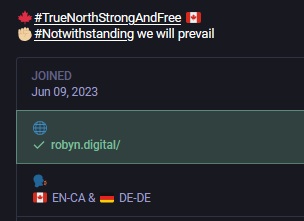
Screenshot of my Mastodon About page, showing my website as verified. As a result, I am now very happy.
04.4. I Made These Mistakes so You Don’t Have To
So here’s my advice after all this:
- Give it a couple hours after you’ve pushed your content to your brand new hosting provider’s servers. Things are showing up when you access
[randomstring].mywhc.ca? Good. Now go make yourself a coffee, go for a walk, read the next chapter in Enshittification. - Come back, tell your registrar what name servers to use for your domains, do all those other things to point your domains to the new host, like letting your host know what those domains are… and then give it a couple more hours.
- Once everything is pointing where it should and loading what it should, give it a couple more hours. (Yep. Just for good measure.)
When implementing the actual Mastodon verification:
- Inspect your deployed website’s code and ensure it is showing the
rel = "me"link. Clear your cache, reload, and then do that again. - Test verification first by adding your
[randomstring].mywhc.ca(or equivalent) URL. to your Mastodon profile.- Ensure that both the URL you added to your Mastodon profile and your actual website both use HTTPS or HTTP. Do not mix them.
- Once that works, proceed with switching the URL on your Mastodon profile to your custom domain.
- Same as before, ensure that both the URL you added to your Mastodon profile and your actual website both use HTTPS or HTTP. Do not mix them.
Congratulations. You are now Mastodon Verified. A veritable achievement. Also, you’re one of the cool kids now.